192.168.1.1 – A Complete Guide to the Gateway of Your Home Network
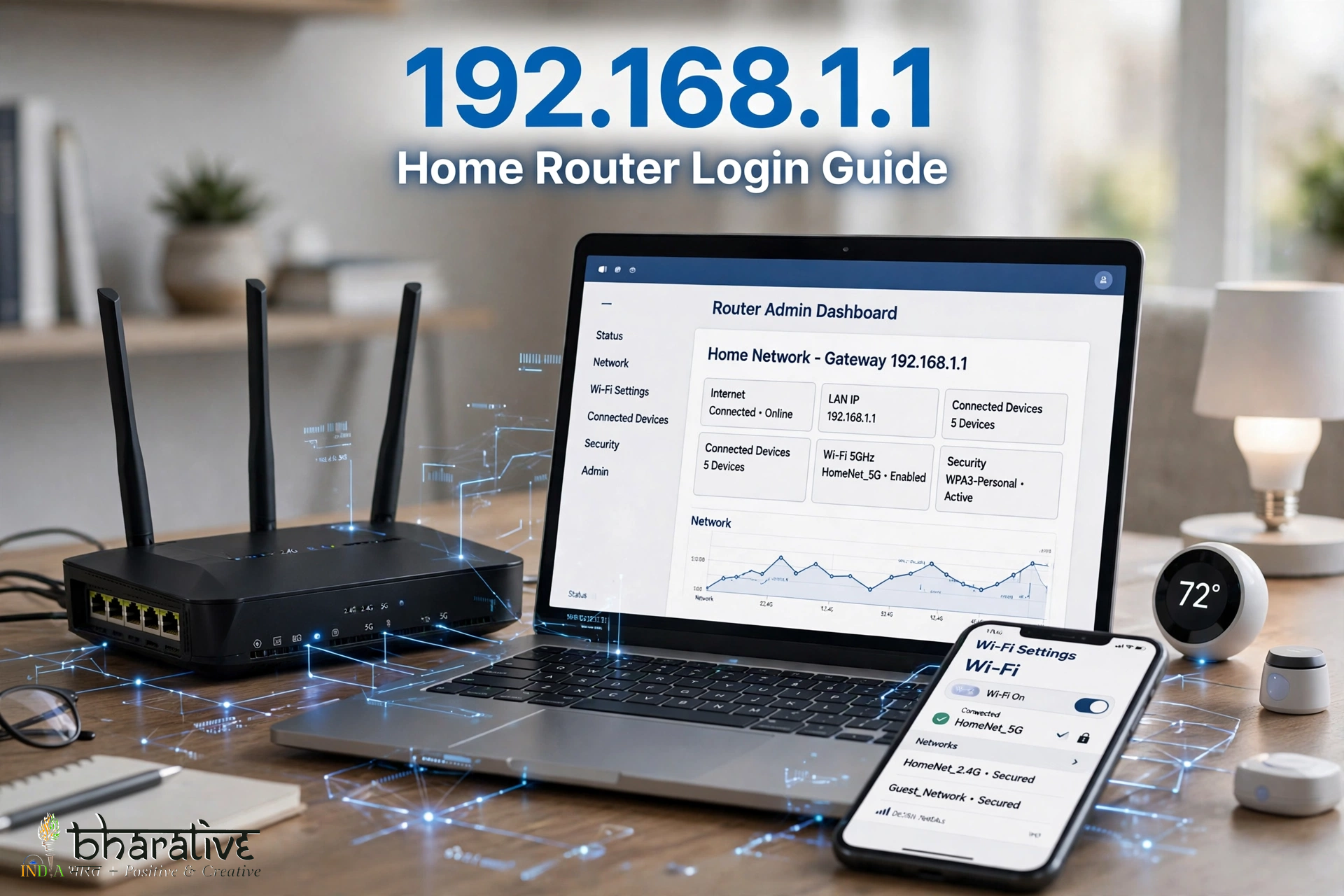

Have you ever wanted to change your Wi-Fi password, improve your wireless network, manage connected devices, or troubleshoot an internet connection? If so, you may have encountered 192.168.1.1, one of the most commonly used private IP addresses for home routers.
This address acts as the default gateway on many home networks, providing access to a router’s administration panel. From there, users can configure wireless settings, manage network security, update firmware, and control various connected devices.
Whether you are setting up a new router or trying to fix an existing network problem, understanding 192.168.1.1 can help you manage your home internet connection more confidently.
In this guide, we explain what the address means, how to access the router login page, which settings you can change, and how to resolve common login and connectivity problems.
What Is 192.168.1.1?
192.168.1.1 is a private IPv4 address commonly configured as the default gateway for home and small-office routers.
A default gateway is the device that forwards network traffic from your local network to other networks, including the internet. In most home setups, this device is your wireless router.
When you enter http://192.168.1.1 into a browser connected to the same local network, your device attempts to open the router’s administration interface.
This interface allows authorized users to manage network configurations and security settings.
Unlike a public IP address, 192.168.1.1 belongs to a private address range. It is intended for use inside local networks and is not directly routable across the public internet.
Why Is 192.168.1.1 So Popular?
Many router manufacturers and internet equipment providers use 192.168.1.1 as a default gateway address.
Its popularity comes from several practical advantages:
Easy to Remember
The address is relatively simple and convenient for users to remember when accessing router settings.
Private Network Compatibility
It belongs to the private IPv4 address range reserved for local network communication.
Familiar Configuration
Using a common default address can make initial router setup and troubleshooting more straightforward.
Some Linksys, TP-Link, D-Link, and other router models may use this address, although the actual default gateway depends on the manufacturer, model, firmware, and network configuration.
How to Access the 192.168.1.1 Router Login Page
Accessing your router’s administration panel is usually straightforward. Follow these steps to get started.
Step 1: Connect to Your Router
Connect your computer, laptop, tablet, or smartphone to the router’s Wi-Fi network.
You can also use an Ethernet cable for a wired connection. Make sure you are connected to the router you want to configure.
Step 2: Open a Web Browser
Launch a browser such as Google Chrome, Microsoft Edge, Mozilla Firefox, or Safari.
Step 3: Enter the Router IP Address
Type the following address into the browser’s address bar:
http://192.168.1.1
Press Enter to continue.
Make sure you enter the address in the address bar rather than the search field.
Step 4: Enter Your Login Credentials
If your router uses this gateway address, its administration page should appear.
Enter the router’s administrator username and password when prompted.
Some routers use default credentials printed on a label attached to the device. Others require users to create administrator credentials during the initial setup.
Step 5: Open the Administration Dashboard
After successful authentication, you should be able to access the router’s settings.
Depending on your router, the dashboard may include wireless configuration, connected devices, security options, firmware updates, and advanced networking features.
Important: Not every router uses 192.168.1.1. If the page does not open, check the router label or identify the actual default gateway of your connected device.
Default Username and Password for 192.168.1.1
Some older or basic routers may use commonly known default login combinations.
Examples include:
| Username | Password |
|---|---|
| admin | admin |
| admin | password |
| admin | Printed on router label |
These are examples, not universal credentials. Modern routers frequently use unique passwords printed on the device or require users to create a password during setup.

If the default credentials do not work, consider the following possibilities:
- The administrator password was changed previously.
- Your internet provider configured the router.
- The router uses a unique login printed on its label.
- You are accessing the wrong gateway address.
- The device has a separate administrator account.
Avoid repeatedly guessing passwords. If you cannot identify the correct credentials, consult the router manufacturer or internet service provider.
What Can You Do After Logging In?
The router administration panel gives you access to several useful network management options.
The exact features vary by router model, but many devices provide the following settings.
1. Change Your Wi-Fi Network Name (SSID)
The SSID is the name displayed when nearby devices search for available wireless networks.
You can change the default network name to something recognizable.
For example, instead of using a generic manufacturer name, you might choose a simple name that helps family members identify the correct connection.
2. Change Your Wi-Fi Password
A strong wireless password helps prevent unauthorized users from connecting to your network.
Choose a password that is difficult to guess and avoid using personal details such as your name, phone number, or date of birth.
3. Create a Guest Network
Many modern routers support separate guest Wi-Fi networks.
A guest network allows visitors to access the internet without giving them direct access to your primary home network.
This can be useful when friends, relatives, or temporary visitors need Wi-Fi access.
4. Manage Connected Devices
The connected-device section shows devices currently using your network.
Depending on the router, you may see device names, local IP addresses, MAC addresses, and connection types.
This information helps you identify unfamiliar devices and manage network access.
5. Update Router Firmware
Firmware is the software that controls your router’s operation.
Manufacturers periodically release updates that can improve performance, fix bugs, and address security vulnerabilities.
Check the administration panel or manufacturer’s website for available updates.
6. Configure Parental Controls
Some routers include parental control features that allow users to manage internet access for selected devices.
Depending on the model, you may be able to create schedules, restrict certain websites, or pause internet access.
7. Configure Port Forwarding
Port forwarding directs incoming network traffic to a specific device or service inside your local network.
It may be used for certain gaming applications, self-hosted services, remote access, or security systems.
However, opening ports can expose devices to external threats. Only configure the ports you actually need, and secure the destination device.
Understanding Private IP Address Ranges
The address 192.168.1.1 belongs to one of three private IPv4 address ranges reserved for local networks.
These ranges are:
| Private IP Range | Address Block |
|---|---|
| 10.0.0.0 – 10.255.255.255 | 10.0.0.0/8 |
| 172.16.0.0 – 172.31.255.255 | 172.16.0.0/12 |
| 192.168.0.0 – 192.168.255.255 | 192.168.0.0/16 |
These addresses are not assigned as globally routable public IPv4 addresses.
Within the 192.168.0.0/16 range, routers can use different gateway addresses, including:
- 192.168.0.1
- 192.168.1.1
- 192.168.1.254
- 192.168.100.1
The actual gateway depends on the router’s configuration.
Common Problems When Accessing 192.168.1.1
Sometimes, entering 192.168.1.1 does not open the router login page. This can happen for several reasons.
Here are some common problems and their possible solutions.
Problem 1: The Login Page Does Not Load
If the browser displays an error or cannot reach the page, try these steps:
- Confirm that your device is connected to the correct router.
- Check the IP address for typing mistakes.
- Try another browser.
- Restart the router if necessary.
- Check whether the router uses a different default gateway.
If you are using Windows, you can identify the gateway through Command Prompt.
- Press
Windows + R. - Type
cmdand press Enter. - Enter the command
ipconfig. - Find the active network adapter.
- Look for the Default Gateway entry.
The displayed address is generally the gateway you should use to access the router.
Problem 2: Incorrect Username or Password
If the login page appears but rejects your credentials, check the router label or setup documentation.
You may also need to contact your internet service provider if it supplied and configured the router.
If the administrator password was changed and cannot be recovered, a factory reset may be necessary.
Problem 3: Router Login Page Keeps Loading
A browser cache issue, network configuration problem, or router malfunction can prevent the administration page from loading correctly.
Try:
- Opening the address in a private browsing window.
- Clearing the browser cache.
- Connecting through an Ethernet cable.
- Restarting the router.
- Temporarily disconnecting other network interfaces, such as a second Wi-Fi connection.
Problem 4: You Are Using the Wrong IP Address
Not all routers use 192.168.1.1.
Some use 192.168.0.1, 10.0.0.1, or another private address.
Use the Default Gateway information from your device to identify the correct address instead of repeatedly trying different IPs.
Advanced Router Features You Should Know
Beyond basic Wi-Fi configuration, many modern routers provide advanced options for improving network management.
Quality of Service (QoS)
Quality of Service allows routers that support it to prioritize certain types of network traffic or connected devices.
For example, you may be able to prioritize video calls, online gaming, or work-related devices.
The exact configuration depends on the router’s software and available QoS options.
Port Forwarding
Port forwarding allows specific incoming connections to reach a selected device on your local network.
Common applications include:
- Multiplayer gaming
- Self-hosted applications
- Remote desktop services
- Certain security camera systems
Only forward ports when required. Unnecessary open ports can increase your network’s security exposure.
MAC Address Filtering
A MAC address is a hardware identifier associated with a network interface.
Some routers allow administrators to create access rules based on MAC addresses.
However, MAC filtering should not be treated as strong security on its own because MAC addresses can be copied or spoofed.
Dynamic DNS (DDNS)
Dynamic DNS connects a consistent hostname to an internet connection whose public IP address may change.
This can be useful for certain remote-access applications.
DDNS availability and setup options vary by router and service provider. If you configure remote access, use strong authentication and keep the relevant software updated.
Security Best Practices for Your Home Router
Your router is an important part of your digital security. An improperly configured device can expose connected computers, phones, smart home equipment, and other devices to unnecessary risks.
Follow these practices to improve your network’s protection.
Change Default Administrator Credentials
Replace factory-default administrator credentials with a strong, unique password.
If your router allows you to change the administrator username, consider doing so as well.
Use WPA3 or WPA2 Encryption
Choose WPA3-Personal when supported by your router and connected devices.
WPA2-AES is a suitable alternative when WPA3 is unavailable.
Avoid outdated security standards such as WEP.
Disable WPS When Not Needed
Wi-Fi Protected Setup can simplify device connections, but some implementations have security weaknesses.
Disable WPS if you do not need it.
Keep Firmware Updated
Install firmware updates from the router manufacturer or authorized internet service provider.
Updates can address security vulnerabilities and improve device stability.
Disable Unnecessary Remote Administration
If you do not need to manage your router from outside your home network, disable remote administration.
This reduces unnecessary exposure of the router’s management interface.
Use a Separate Guest Network
Give visitors access through a guest network rather than sharing your primary Wi-Fi credentials.
Where supported, enable guest network isolation to limit access to other devices.
Keep Your Wi-Fi Password Strong
Use a long, unique password that is not reused across other accounts or services.
A strong password is one of the simplest ways to protect a wireless network.
Note: Hiding your Wi-Fi network name does not provide meaningful security by itself. Strong encryption and authentication are much more important.
Alternatives to 192.168.1.1
If 192.168.1.1 does not open your router’s administration panel, your device may be configured with a different gateway.
Some other commonly encountered private addresses include:
| IP Address | Possible Use |
|---|---|
| 192.168.0.1 | Home router gateway |
| 192.168.1.254 | Alternative router gateway |
| 10.0.0.1 | Router or gateway on some networks |
| 192.168.100.1 | Some modem or cable equipment interfaces |
These are examples rather than guaranteed manufacturer defaults. Always check your router documentation or device network settings.
Factory Reset: What to Do If You Cannot Access Your Router
If you have forgotten your administrator password and cannot recover it, a factory reset may restore the router’s original configuration.
However, resetting the device should be a last resort.
Before proceeding:
- Check whether your internet provider supplied the router.
- Confirm that you have the necessary internet connection details.
- Look for the manufacturer’s reset instructions.
- Understand that custom Wi-Fi names, passwords, and network settings may be erased.
Many routers have a small physical reset button. The reset procedure and required button-hold duration vary by model.
After resetting, follow the manufacturer’s setup instructions to configure the internet connection and create new administrator and Wi-Fi passwords.
IPv4 vs. IPv6: Does 192.168.1.1 Still Matter?
IPv4 and IPv6 are two versions of the Internet Protocol used to identify devices and route network traffic.
IPv4 uses 32-bit addresses, including private addresses such as 192.168.1.1.
IPv6 uses a much larger 128-bit address space and introduces a different addressing structure.
Although IPv6 adoption continues to grow, IPv4 remains widely used in home networking. Many routers support both protocols, allowing them to operate in dual-stack environments.
Therefore, private IPv4 addresses such as 192.168.1.1 remain relevant for a large number of home and small-office networks.
Real-World Uses of Router Administration
Understanding your router’s gateway address is useful for more than just changing Wi-Fi passwords.
Different users can benefit from router administration in several ways.
For Parents
Parental control settings can help manage internet access for children, where supported by the router.
For Gamers
Some routers provide QoS and port-forwarding options that can help configure specific gaming services.
For Remote Workers
Traffic prioritization and guest network features can help organize home network usage.
For Smart Home Users
Router administration can help monitor connected smart devices and manage their wireless network access.
Common Myths About 192.168.1.1
There are several misunderstandings about private gateway addresses and router administration.
Myth 1: Anyone on the Internet Can Open My Router Through 192.168.1.1
Fact: 192.168.1.1 is a private address. It is normally reachable only from the relevant local network, although insecure remote administration or other network configurations can create external exposure.
Myth 2: Every Router Uses 192.168.1.1
Fact: Routers can use different private gateway addresses. Check your device’s Default Gateway to find the correct one.
Myth 3: Changing Router Settings Always Improves Internet Speed
Fact: Some settings can improve network performance in specific situations, but incorrect configurations can also create problems. Internet speed depends on several factors, including your service plan, signal strength, interference, and network hardware.
Myth 4: You Need Advanced Technical Skills to Manage a Router
Fact: Many modern routers provide user-friendly administration dashboards. Basic tasks such as changing a Wi-Fi password or checking connected devices are usually straightforward.
Myth 5: Hiding Your SSID Makes Your Network Secure
Fact: Hiding a network name does not replace encryption or strong passwords. Use modern Wi-Fi security settings instead.
Summary: Why 192.168.1.1 Still Matters
192.168.1.1 is more than a sequence of numbers. For routers that use it as their default gateway, it provides access to the administration interface that controls important parts of a home network.
Through the router dashboard, users can change Wi-Fi names and passwords, manage connected devices, configure guest networks, update firmware, and troubleshoot connectivity problems.
Remember that not every router uses this address, and administrator credentials vary between devices. If the login page does not load, check the Default Gateway on your computer or consult your router documentation.
With a few basic precautions and an understanding of the available settings, you can make your home network easier to manage, more secure, and better suited to your everyday needs.
Frequently Asked Questions (FAQs)
1. What is 192.168.1.1 used for?
192.168.1.1 is a private IPv4 address commonly used as the default gateway of home routers. It can provide access to the router’s administration interface from a connected local device.
2. How do I log in to 192.168.1.1?
Connect your device to the router, open a browser, enter http://192.168.1.1 in the address bar, and provide the correct administrator credentials.
3. What is the default username and password for 192.168.1.1?
There is no universal username and password. Some older routers use combinations such as admin/admin, while newer devices may have unique credentials printed on a label or created during setup.
4. Why is 192.168.1.1 not opening?
Your router may use a different gateway address, or your device may not be connected to the correct network. Check the Default Gateway using the ipconfig command on Windows.
5. Can I change my Wi-Fi password through 192.168.1.1?
Yes, if your router uses this address and provides wireless configuration options. Log in to the administration panel and look for Wireless, Wi-Fi, or WLAN settings.
6. How can I find my router’s IP address?
On Windows, open Command Prompt, enter ipconfig, and look for the Default Gateway under your active network connection.
7. Is 192.168.1.1 a public or private IP address?
It is a private IPv4 address reserved for local network use. It is not directly routable over the public internet.
8. What happens if I reset my router?
A factory reset generally restores the router’s default configuration and removes custom settings, including Wi-Fi names and passwords. You may need to configure your internet connection again.
9. Is it safe to access 192.168.1.1?
Yes, accessing your own router’s administration page is a normal network management task. Use a secure connection to your home network, protect administrator credentials, and avoid sharing login details with unknown websites.
10. Does every router support 192.168.1.1?
No. The default gateway varies by router model and configuration. Check your router documentation or the Default Gateway displayed in your device’s network settings.
You may also like ...